Retrieve
 30-Day Money-Back Guarantee
LightXtreme VPN for macOS - retrieve
Anything running macOS 12 or later is fine, and it works on every Mac model.
2,000+ servers located in 70+ countries put it alongside the best-performing VPNs.
Regional boundaries are easy to leave behind, and any site or platform opens up.
No bandwidth limit and no throttling keep the link quick and calm throughout.
Your true address is masked, so you remain anonymous while online.
Heavy encryption covers the connection, and your privacy stays protected because of it.
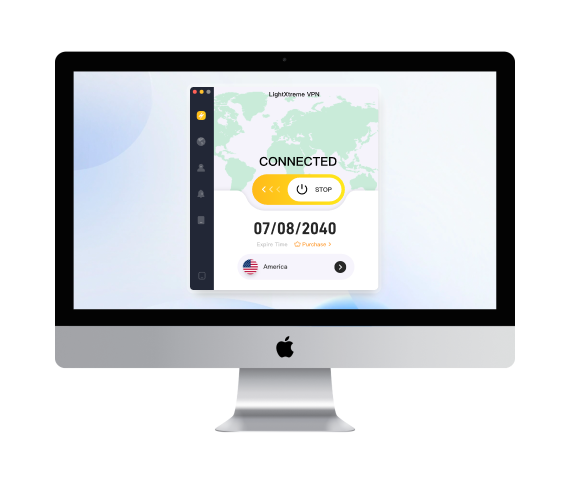


Using LightXtreme VPN on macOS? Three steps
Retrieve and install
Press the Free Download button, download the LightXtreme VPN client and install it.

Subscribe and sign up
Choose a plan, subscribe, get your random numeric account and set the password yourself.
Log in and connect
Launch LightXtreme VPN, sign in, select a server and tap to connect, then browse as you please.
macOS Retrieve Questions

Pick a client such as LightXtreme VPN, choose a plan, download it from the official site and follow the instructions.

Shadowsocks, Vless and WireGuard work together with algorithms such as AES-256-GCM to protect the traffic.
If macOS mentions an unverified developer, go to Apple > System Settings > Privacy & Security and allow the download.
LightXtreme VPN for iOS - retrieve
 Designed for iOS 15 and newer.
Supported across all iPhone and iPad models.
2,000+ servers serving 70+ countries.
Break through regional restrictions and reach global information.
Quick, steady and secure connections with unlimited bandwidth.
The address is hidden and the traffic encrypted, protecting both privacy and security.
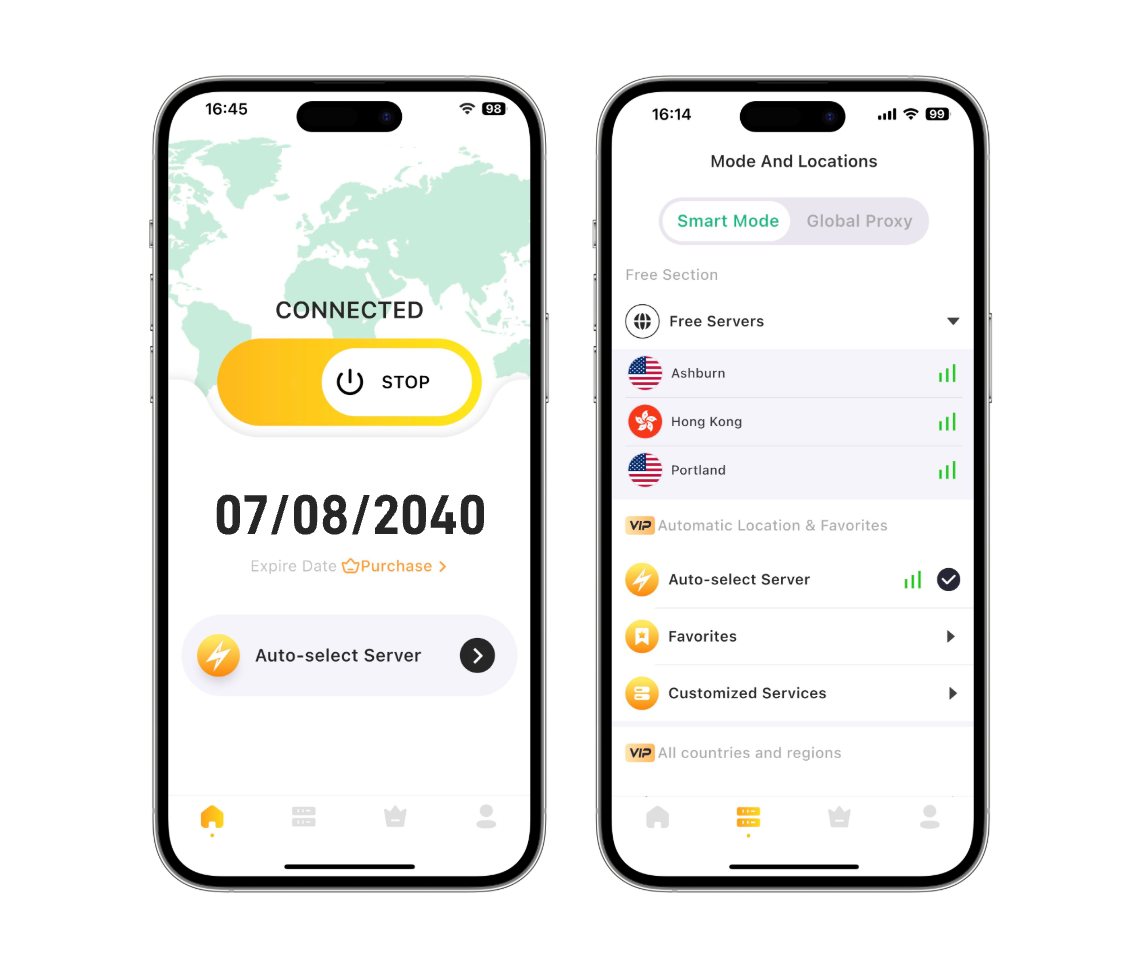
Using LightXtreme VPN on iOS? Three steps
Retrieve and install
Tap Free Retrieve, or search for the LightXtreme VPN app in the App Store and install it on your iPhone or iPad.
Subscribe and sign up
Installing the LightXtreme VPN iOS app gives you a free trial account — subscribe to a plan and register your numeric account to unlock every feature.
Log in and connect
Launch LightXtreme VPN, sign in, tap Start to connect, or pick any other server you prefer.
iOS Retrieve Questions
In some regions LightXtreme VPN may not appear in the App Store due to local restrictions. You can change the region of your Apple account, or register a US Apple ID and search again.
A VPN (virtual private network) hides your IP address and encrypts your traffic so you can browse anonymously and safely, and reach content that is region restricted.
A free trial comes with LightXtreme VPN; if it suits you, take a paid plan and open up every server with unlimited bandwidth.
LightXtreme VPN for Windows - retrieve
Made for Windows 11 and Windows 10.
2,000+ servers serving 70+ countries.
Once regional limits are gone, content from every corner of the world opens up.
Quick, steady connections with unlimited bandwidth.
Unlock YouTube, TikTok, Instagram, Netflix and any other site or platform.
Hiding the address keeps you anonymous, and encryption protects your data.
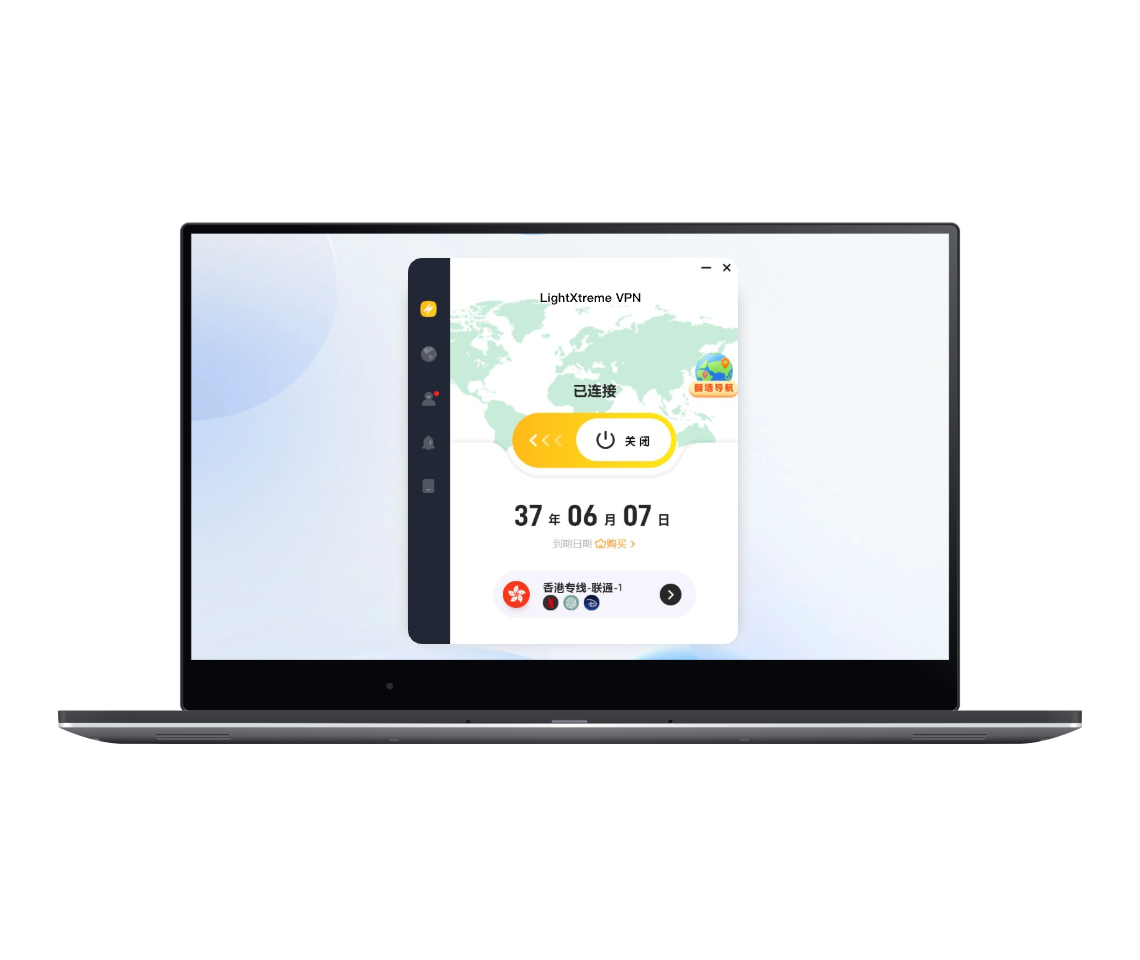
Using LightXtreme VPN on Windows? Three steps
Retrieve and install
Tap Free Retrieve to retrieve and install the LightXtreme VPN client on your computer.
Subscribe and sign up
Choose a plan and subscribe, receive a random numeric account and set your own password for it.
Log in and connect
Open LightXtreme VPN, sign in with your account, choose a server and tap to connect — then start browsing the sites and content you love.
Windows Retrieve Questions
Open the LightXtreme VPN website in your browser, tap Free Retrieve and the client will be installed on your computer.
Look over your network connection first and make sure it is quick and steady; you can also switch the VPN mode to Global Proxy and retrieve LightXtreme VPN again.
Double-look over your numeric account and password, confirm your subscription has not expired and look over your connection before trying again.
Yes. One LightXtreme VPN account allows up to 3 devices online together.
LightXtreme VPN for Android - retrieve
Runs on Android 5.0 and later.
2,000+ servers worldwide with unlimited bandwidth.
Break through regional limits and reach any site or platform.
Quick, steady and secure connections.
Heavy encryption guards your data, your privacy and your security.
Hide your IP address and stay anonymous.
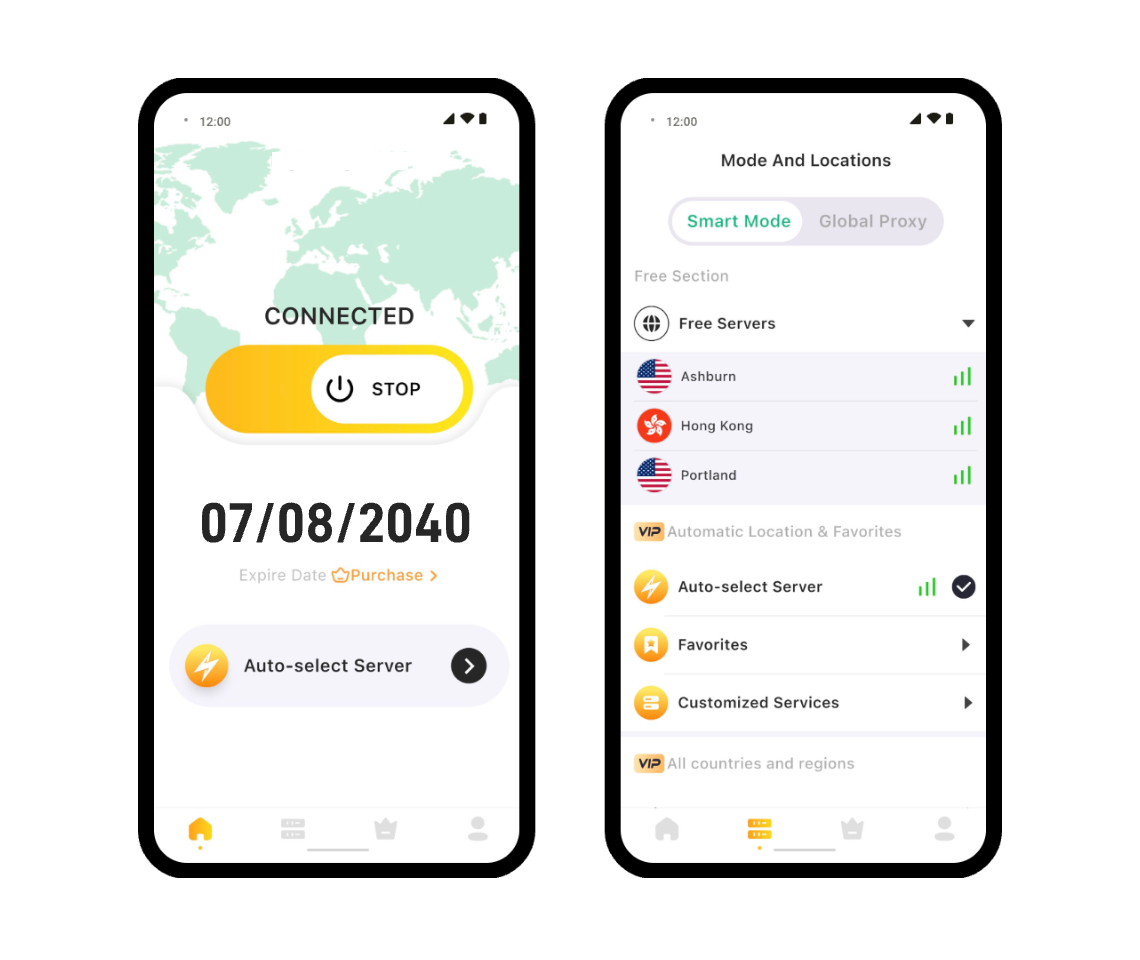
Using LightXtreme VPN on Android? Three steps
Retrieve and install
Tap Free Downloadall it on your Android device.
Subscribe and sign up
Installing the LightXtreme VPN Android app gives you a free trial account — subscribe to a plan and register your numeric account to unlock every feature.
Log in and connect
Open LightXtreme VPN, sign in with your account, and tap through to the server you want.
Android Retrieve Questions
Pick a reliable provider such as LightXtreme VPN, install the app from Google Play, open it, sign in and connect to your chosen server location.
LightXtreme VPN is not a free VPN, but you can try it: installing it gives you a free account and trial time, and linking an email adds another 30 minutes.
Open the LightXtreme VPN app and tap Stop to disconnect the current session.
Try another server, confirm your underlying network is stable, update the client to the latest version, or contact support and we will help you troubleshoot.
LightXtreme VPN for Apple TV - retrieve
Supports tvOS 17 and above.
over 2,000 servers serving 70+ countries.
Films and series on Netflix, Hulu, Disney+ and elsewhere are yours to watch.
Break through regional limits and unlock worldwide video content.
Quick and steady with unlimited bandwidth — one tap to connect.
The strongest ECC encryption protects your data, privacy and security.
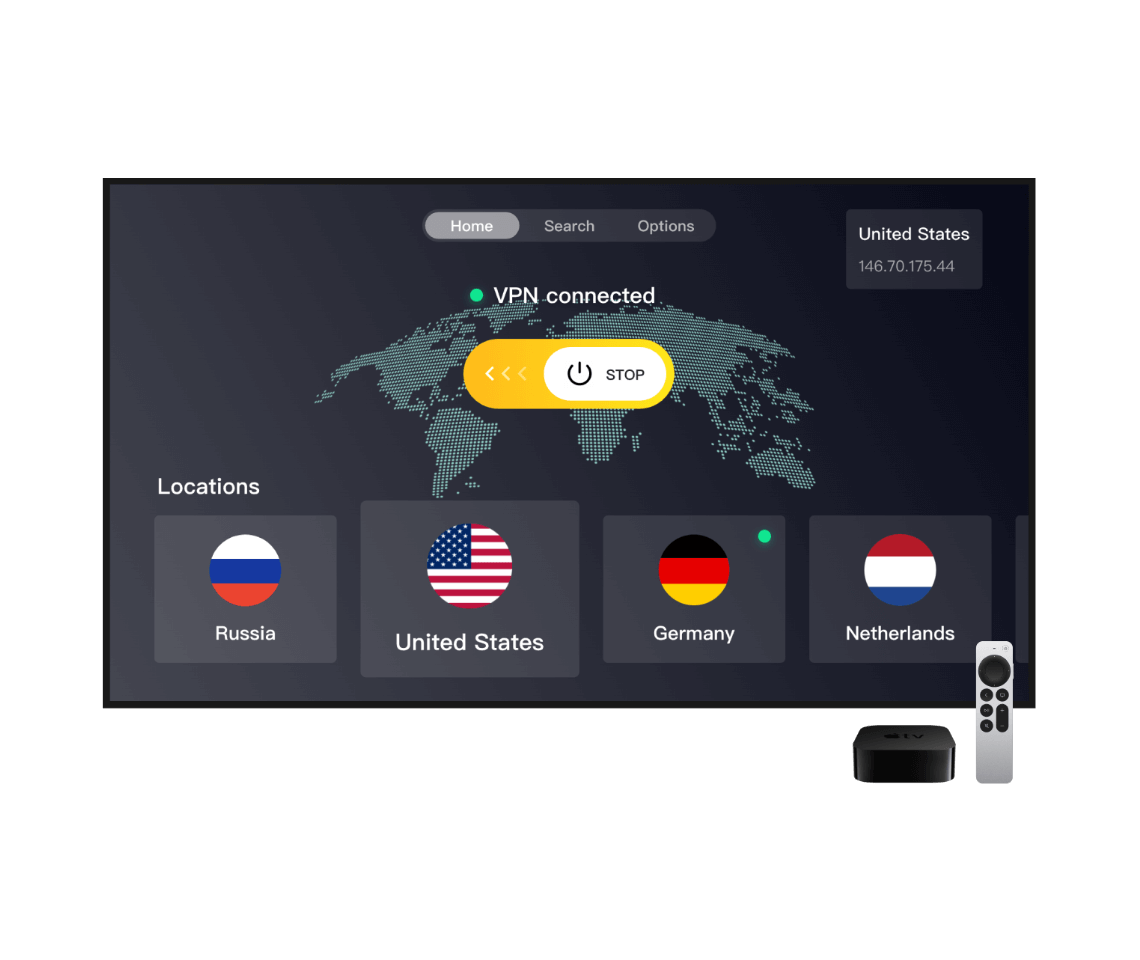
Using LightXtreme VPN on Apple TV? Three steps
Retrieve and install
Open the App Store on Apple TV, search for LightXtreme VPN and retrieve and install it to your Apple TV.
Subscribe and sign up
Subscribe to your plan, get your random numeric account and sign in with your account name and password.
Log in and connect
Choose a country and server, connect, and start watching your favourite films and series on Apple TV.
Apple TV Retrieve Questions
Search for LightXtreme VPN in the Apple TV App Store and retrieve and install it directly.
Either sign in with your account name and password, or scan the QR code from the LightXtreme VPN mobile app.
Apple TVs running tvOS 17 or later can install the native VPN app straight from the App Store; earlier systems cannot.
LightXtreme VPN for Android TV - retrieve
Runs on Android 5.0 and later.
Films and series on Netflix, Hulu, Disney+ and elsewhere are yours to watch.
Watch films and shows from 70+ countries.
2,000+ servers worldwide — quick, steady and unlimited.
Heavy encryption guards your data, your privacy and your security.
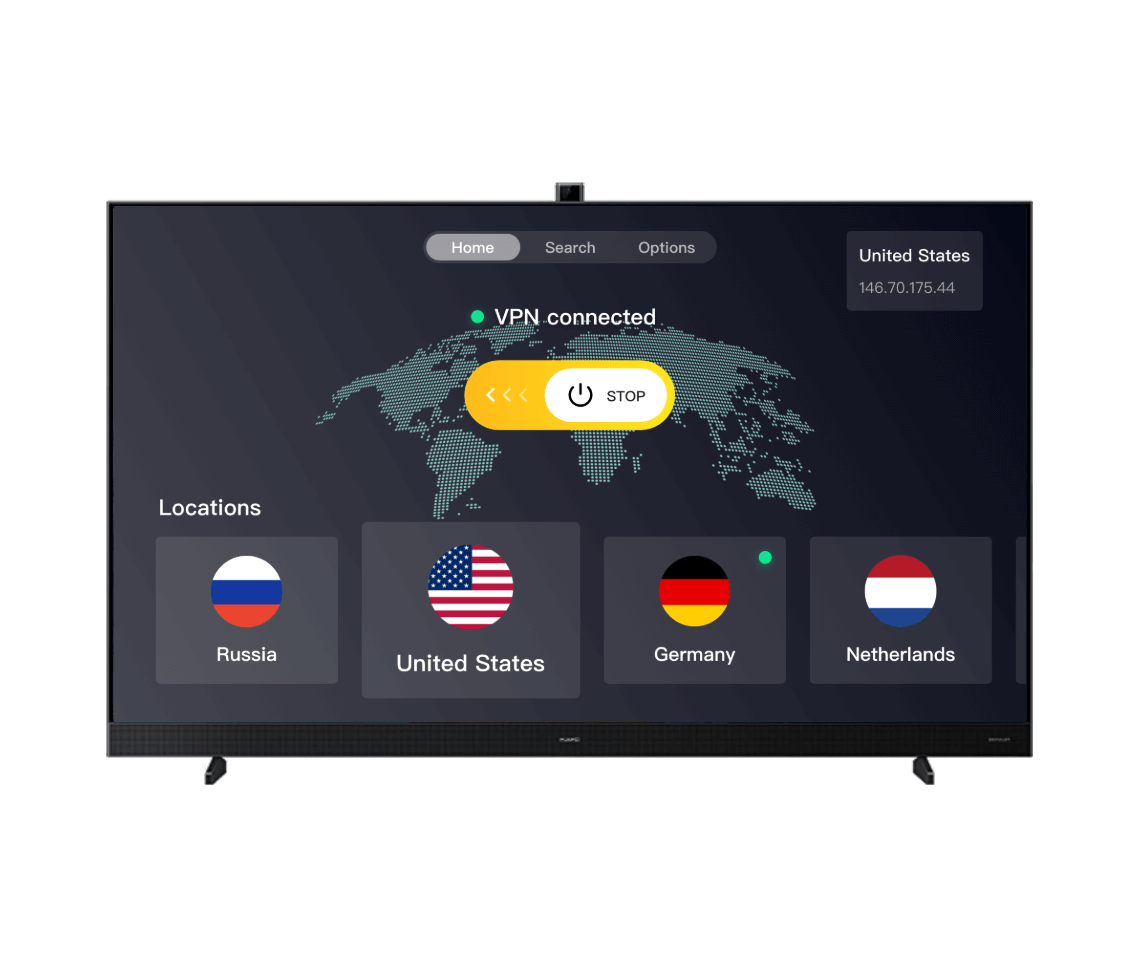
Using LightXtreme VPN on Android TV? Three steps
Retrieve and install
Open Google Play on your Android TV, search for LightXtreme VPN and retrieve and install it.
Subscribe and sign up
Pick a plan, pay for it, and you will be issued a random numeric account to sign in with.
Log in and connect
Pick the country and the server, connect, and your favourite content begins playing on Android TV.
Android TV Retrieve Questions
Search for LightXtreme VPN in the Google Play store on Android TV, or retrieve the APK from our site and install it on your Android TV.
Fast, protected and dependable on Android TV, and versions exist for Apple TV, Windows, macOS, Android and iOS too.
Sign in with your VPN account name and password, or scan the QR code with the LightXtreme VPN mobile app to sign in on Android TV.
Yes. Many VPN providers offer Android TV apps that install directly from Google Play.
Good VPN providers offer optimised high-velocity servers for streaming, so the impact on velocity is minimal.
LightXtreme VPN for Linux - retrieve
Supports Debian Linux 11 or Ubuntu 20.04 LTS and above, on both AMD64 and ARM64.
2,000+ servers serving 70+ countries.
Once regional limits are gone, content from every corner of the world opens up.
Quick, steady connections with unlimited bandwidth.
Unlock YouTube, TikTok, Instagram, Netflix and any other site or platform.
Hiding the address keeps you anonymous, and encryption protects your data.
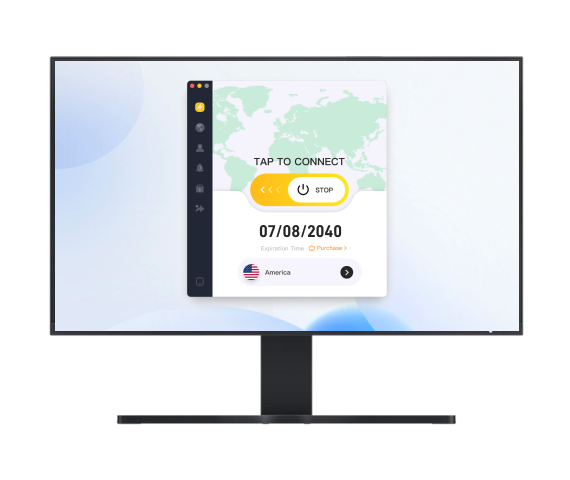
Using LightXtreme VPN on Linux? Three steps
Retrieve and install
Tap Free Retrieve to retrieve and install the LightXtreme VPN client on your Linux device.
Subscribe and sign up
Subscribe to your plan and register a numeric LightXtreme VPN account.
Log in and connect
Launch LightXtreme VPN, sign in with your VPN account, tap Start to connect, or tap Mode & Server to switch to another one.
Linux Retrieve Questions
Unlike Linux VPN services that require command-line installation, sign-in and connection, LightXtreme VPN ships a graphical interface: tap Free Retrieve to install, then manage connections and settings from the app.
There are many VPN tools for Linux, and LightXtreme VPN is among the best experiences of them all: no command line, a friendly interface, and the same velocity, stability and security.
Retrieve the LightXtreme VPN Chrome extension
Quick, secure, ad-free browsing.
Simple installation, ready to use straight away.
Strong encryption looks after your privacy and holds your data safe.
2,000+ servers to break through regional limits and unlock any site or platform.
Connections stay in good shape, which makes for a smooth session online.
Hide your IP address to protect your privacy and network security.
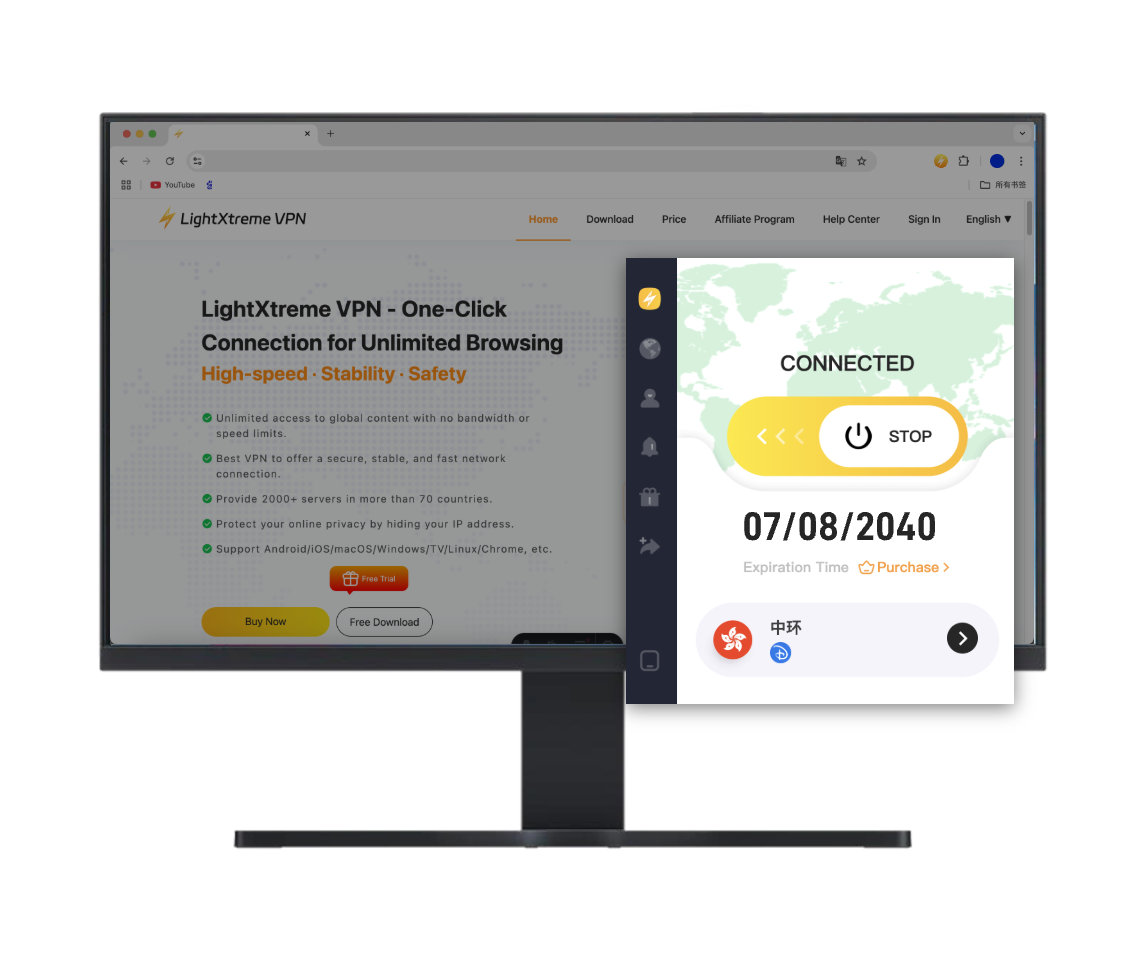
Using LightXtreme VPN on Chrome? Three steps
Add the Chrome extension
Tap Free Retrieve, or search for LightXtreme VPN in the Chrome Web Store and click Add to Chrome.
Subscribe and sign up
Register your LightXtreme VPN account and choose the plan that suits you.
Log in and connect
Open the LightXtreme VPN Chrome extension, sign in, choose a country and server and click connect for quick, secure and steady browsing.
Chrome Retrieve Questions
The LightXtreme VPN Chrome extension requires Chrome 124 or later.
Retrieve the LightXtreme VPN Edge extension
On Microsoft Edge you browse quickly, safely and with no adverts.
2,000+ servers worldwide to unlock any site.
Rotate your IP address to stay anonymous and protect your online activity.
Your data is protected by advanced encryption protocols.
Simple installation, ready to use straight away.
Steady, high-velocity connections for the best browsing experience.
Using LightXtreme VPN on Edge? Three steps
Add the Edge extension
Tap Free Download and confirm the installation.
Subscribe and sign up
Set up a LightXtreme VPN account first, then choose the plan that fits how you use it.
Log in and connect
Open the LightXtreme VPN Edge extension, sign in, choose a server and click Connect for quick, secure and steady browsing in Edge.
Edge Retrieve Questions
The LightXtreme VPN extension asks for Edge 124 or a newer build.
Retrieve the LightXtreme VPN Firefox extension
Browse quick, securely and without ads on Firefox.
Simple installation, ready to use straight away.
Reach any site or platform through 2,000+ servers worldwide.
Your IP address is hidden, so you stay anonymous and browsing remains private.
Advanced encryption technology for maximum privacy protection.
Steady, high-velocity connections for the best browsing experience.
Using LightXtreme VPN on Firefox? Three steps
Add the Firefox extension
Tap Free Retrieve, or search for LightXtreme VPN in the Firefox Add-ons store, click Add to Firefox and confirm.
Subscribe and sign up
Set up a LightXtreme VPN account first, then choose the plan that fits how you use it.
Log in and connect
Open the LightXtreme VPN Firefox extension, sign in, choose a country and server and click connect to start browsing in Firefox.
Firefox Retrieve Questions
Installing the LightXtreme VPN extension on Firefox requires Firefox 126 or later.